First Time Set Up
Thank you for signing up for emails & database access. (If you haven’t or can’t get in for some reason, email me! juli@bargainbeliever.com)
As long as you remain a confirmed email subscriber, you will have access to the grocery database. (Note: The automated system might require you to open and/or click a link every once in a while, to keep your “confirmed” status.)
To get set up, it’s going to take a few minutes to log into everything. Once you do, you will be able to create your lists on one device and access them on another if needed.
To begin, log in at one of these two places:
- Green “Create List” button at the top of the website
- “Members” on the menu bar and then down to “Login/Out.“
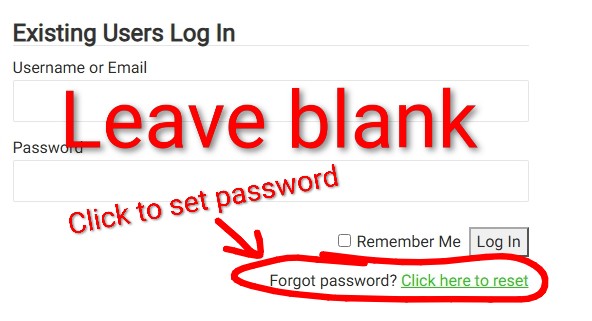
Then (see above graphic)
- Skip filing out the info
- Go to “Forgot Password” to set what you want
- Enter email
- Use link that will be sent & follow instructions
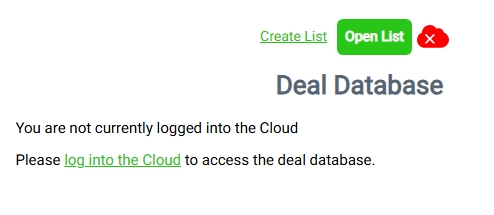 Next, come back to the website (www.BargainBeliever.com) to “Create List”
- The first time, you’ll need to sign into the Cloud
- You MUST USE THE SAME EMAIL you used to register
(Contact me if you need to change your email juli@bargainbeliever.com) - If you’ve used the Cloud before, use your same password; if not choose one
- The cloud (red in the graphic above) will turn green when you’re set
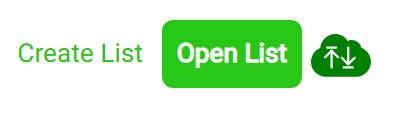
In the future, go create your list, go to “Create List” or “Open List” to get to what you’ve already saved.
** We don’t have an app. I suggest bookmarking www.BargainBeliever.com or the actual database, then creating an icon on your phone for quick access. (See directions below.)
I will have more directions for how the database works in the near future, but I figured I’d let you get started and … well, you can probably figure most of it out!
** Directions for adding shortcut (Icon) to phone:
- Open the Safari and go website.
You can go to the general website https://www.bargainbeliever.com and then click to “Create List” each time.
Or, bookmark right where you go to make your list https://www.bargainbeliever.com/blog/members-area/deal-database.
- Tap the Share button (the square with an arrow pointing up at the bottom or top).
- Scroll down the list and tap Add to Home Screen.
- Type a name for your icon. Toggle on Open as Web App so it opens in full screen like a real app.
- Tap Add in the top right corner.
- Open Google Chrome and go website.
You can go to the general website https://www.bargainbeliever.com and then click to “Create List” each time.
Or, bookmark right where you go to make your list https://www.bargainbeliever.com/blog/members-area/deal-database
- Tap the three dots in the top-right corner.
- Select Install and create shortcut (may be “Add to Home screen”)
- Type a new name for the icon if you want, then tap Add.